

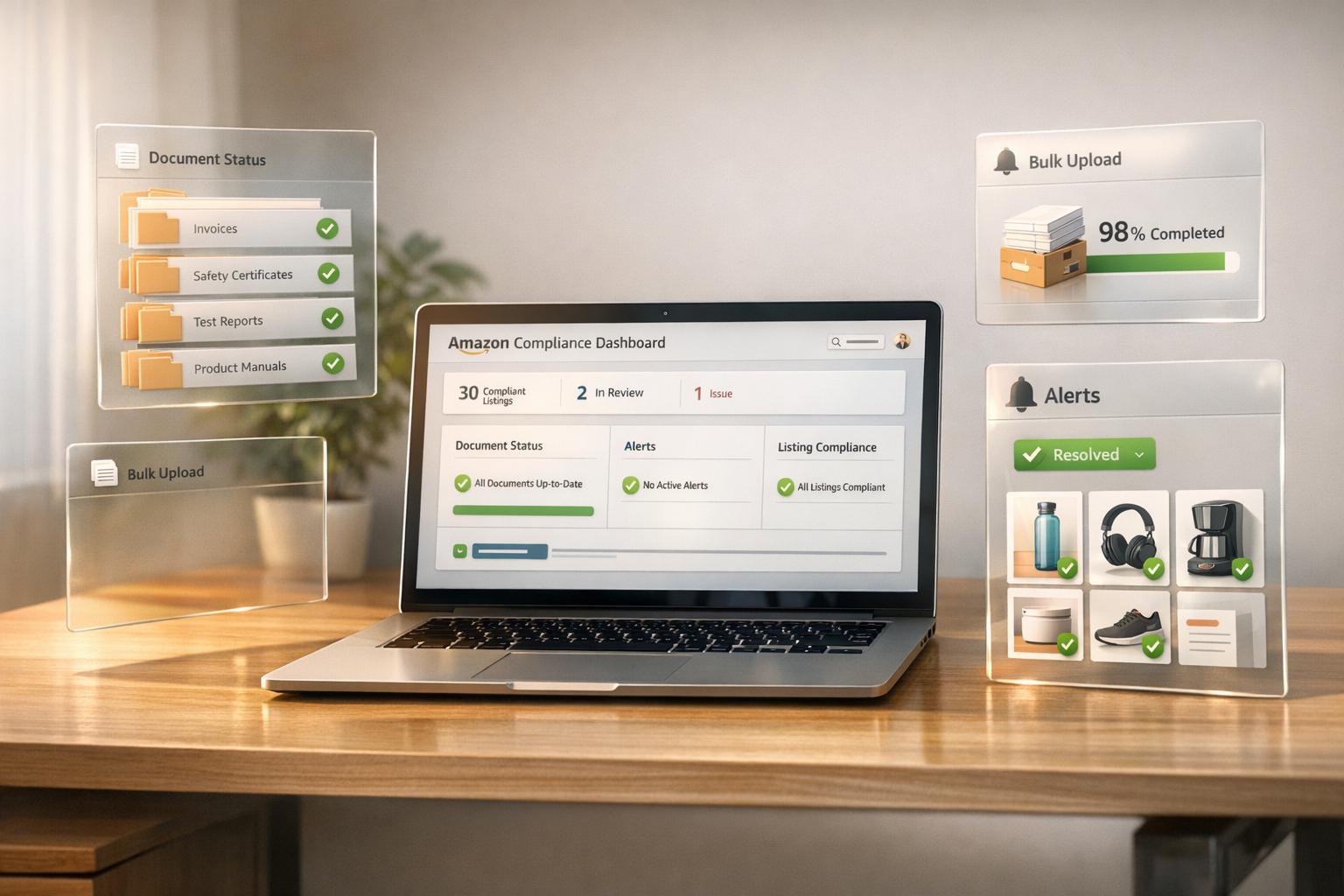
The Amazon Compliance Dashboard simplifies how sellers manage safety and regulatory requirements for their products. It helps you stay compliant by organizing documentation, tracking statuses, and providing tools like bulk uploads for up to 5,000 products. Key features include:
- Real-time compliance alerts: Identify which listings need attention.
- "At-risk sales" column: Prioritize high-revenue products.
- Compliance Reference tool: Access country-specific regulations and testing labs.
- Bulk document uploads: Save time by submitting documents for multiple ASINs at once.
Non-compliance can lead to listing removal, account suspension, or even inventory disposal. Use this dashboard daily to monitor your Account Health Rating (AHR) and address flagged issues promptly. Staying organized with your compliance documentation ensures smooth operations and avoids disruptions.
Manage your compliance dashboard
sbb-itb-d7b5115
How to Access and Navigate the Compliance Dashboard
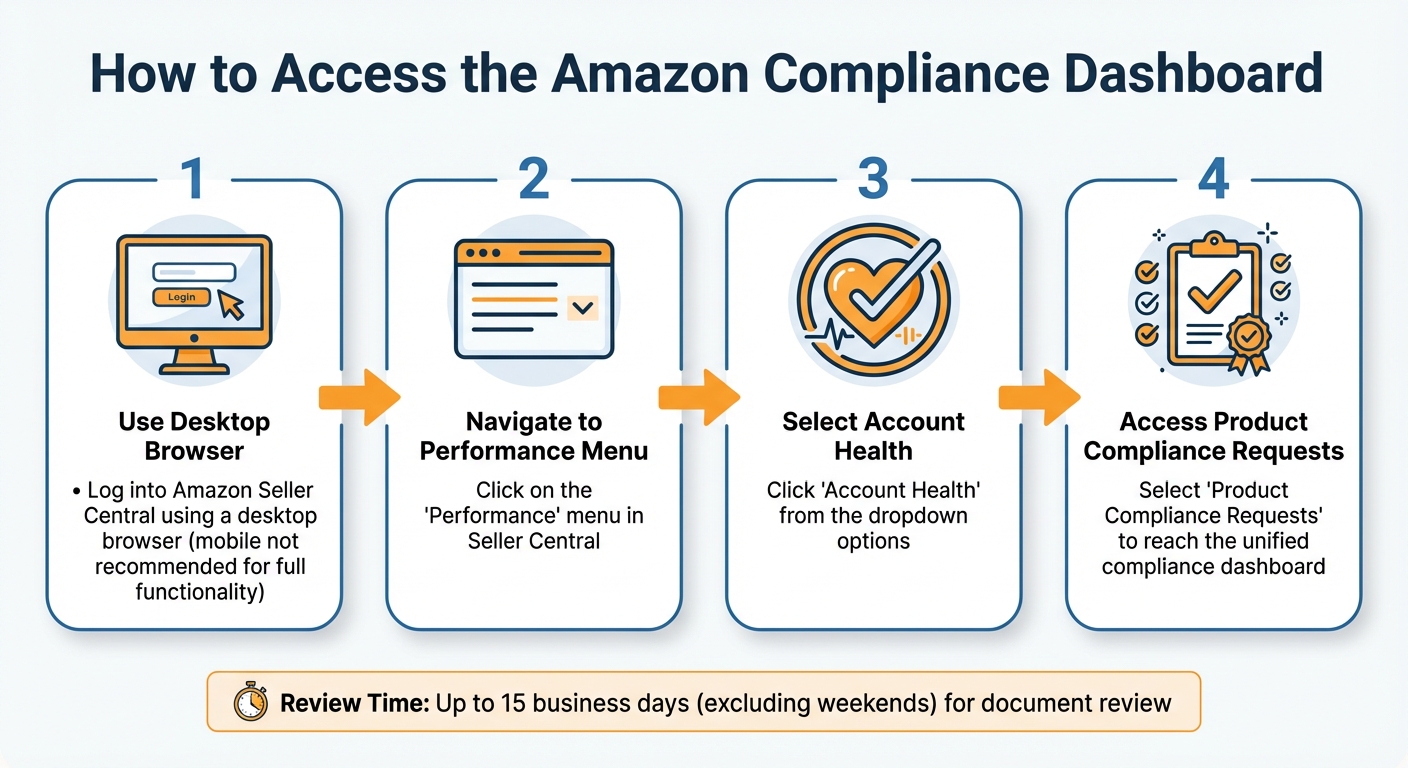
How to Access the Dashboard
To get to the Manage Your Compliance (MYC) dashboard, log into your Amazon Seller Central account using a desktop browser. Some tools on this platform aren’t designed for mobile use, so a desktop browser ensures full functionality. After logging in, head to the Performance menu, then click Account Health, and finally, select Product Compliance Requests. This will take you to the unified compliance dashboard.
"Manage Your Compliance provides a faster, simplified workflow where you can file and organize all necessary information and documentation to show that your products comply with Amazon's policies and government standards and regulations."
- Lola Okusami, Sr. Creative Writer, Amazon
It’s worth noting that the Amazon Compliance team may take up to 15 business days (excluding weekends) to review any documents you submit [6]. Once inside the dashboard, you’ll find a structured layout designed to help you manage compliance tasks more effectively.
Dashboard Layout and Sections
The dashboard is divided into three main tabs, each focusing on a specific part of compliance management:
- Manage Compliance: This is your workspace for handling individual ASIN requirements and tracking open cases.
- Upload File for Compliance: If you need to submit documents for multiple products, this tab is your go-to. It supports bulk submissions for up to 5,000 products at a time. You simply download the provided spreadsheet template, fill in the required details, and upload it back [1].
- Compliance Reference: This tab is a resource hub where you can research country-specific regulations and find Amazon-approved testing labs.
The main view of the dashboard is designed for clarity. It includes several columns to help you stay on top of your compliance tasks:
- Product Details: Displays the product name, image, ASIN, and SKU, making it easy to identify the items requiring attention.
- Compliance Requirements: Lists the specific documents or information Amazon needs for each product.
- Approval Status: Shows the status of your submissions, such as "Under Review", "Approved", or "Rejected."
To make navigation easier, the dashboard includes search and filter tools. You can search for specific products using their SKU, ASIN, or title, and filter results based on listing status. If a submission is rejected, the View Compliance button provides detailed feedback and next steps.
Keep in mind, submissions or appeals currently in progress won’t show up on the main dashboard. Instead, you’ll need to visit the Selling Applications page to track those. This separation ensures the main dashboard stays focused on actionable tasks.
Key Features and Tools of the Compliance Dashboard
Compliance Status and Alerts
The dashboard provides a real-time snapshot of each product's compliance status. The Approval Status column indicates whether your submissions are under review, approved, or rejected, keeping you up-to-date. If a document is rejected, the View Compliance button allows you to see the rejection reason and what steps to take next.
A standout feature is the At-risk sales column, which prioritizes your compliance tasks based on their potential financial impact. This helps you focus on products that drive the most revenue instead of addressing requirements randomly. Each task is accompanied by a due date, ensuring you can act before Amazon suppresses your listing or disposes of your inventory.
"It's important to understand Amazon's interpretation of policy guidelines, not your interpretation that suits your needs as a seller. There is no gray hat on Amazon - it's black or white."
- Chris McCabe, Founder, ecommerceChris [4]
Additionally, bulk document management tools make handling extensive product catalogs more manageable.
Bulk Document Management
Once you've reviewed the status alerts, the bulk upload feature becomes a game-changer for sellers managing large catalogs. This tool allows you to submit compliance documents for up to 5,000 products at once [1]. For sellers working with similar product lines, this feature is particularly helpful since the same test reports or certificates can often apply to multiple ASINs.
To use this feature, download the template under the Upload File for Compliance tab, fill it out with product details and document links, and upload it. Considering that 58% of organizations struggle with compliance management due to limited resources [7], this tool is a practical solution for sellers without dedicated compliance teams.
Compliance Reference Tool
Beyond monitoring and bulk uploads, the Compliance Reference tool acts as a research hub for regulatory standards. It allows you to search for requirements using keywords, product classifiers, or Harmonized System (HS) codes. You can specify where you're shipping from and to, and the tool will display all relevant safety standards, import/export regulations, and dangerous goods attributes.
"The Compliance Reference tool is designed to help you navigate compliance obligations across product categories and types, and helps you stay up-to-date on changing requirements."
- Lola Okusami, Sr. Creative Writer, Amazon [1]
The tool also connects you with Amazon's service provider pool, a directory of accredited testing labs and certification experts. You can select multiple providers and generate a detailed PDF report outlining requirements and contact information. This report can be shared with manufacturers or third-party labs to ensure compliance. If the View help content button is grayed out during your search, it indicates that the product is prohibited in the selected marketplace, saving you from investing in unsellable inventory.
Uploading and Managing Compliance Documents
How to Upload Documents
Once you have the dashboard open, it’s time to submit your compliance documents. Navigate to the compliance dashboard in Seller Central as described earlier. Look for the ASIN needing documentation under the Incomplete Requests or Manage Compliance tab.
Click Provide Documents or the warning link next to the product. Upload the necessary files - such as safety certificates, test reports, or label images - and include any relevant context in the notes section (up to 350 characters). After uploading, hit Submit and keep an eye on the Compliance Status column to check whether your documents are marked "Under Review", "Approved", or "Rejected." Reviews usually take up to 15 business days (excluding weekends) [6], so plan ahead.
If your listing gets flagged or rejected, click Appeal Request or View Compliance to see the specific reason. Choose the correct appeal reason from the dropdown menu, write a brief explanation (up to 350 characters), and submit it for review. Appeals are typically resolved within 7 days [8]. If inventory removal is looming while your documents are still under review, open a case with Selling Partner Support. Provide the Case ID from the dashboard and request an extension to avoid disruptions.
Creating Compliance Reports
Once you’ve handled individual listings, you can use the dashboard to create detailed compliance reports for internal use. With the Compliance Reference tool, search by keyword or HS code, select relevant service providers to add to your "service provider pool", and click Create Report to generate a PDF summary. This report is a handy resource for sharing requirements and contact details with manufacturers or third-party labs, ensuring everyone stays aligned on regulatory standards.
How to Monitor and Maintain Compliance
To ensure long-term compliance, it's essential to combine the dashboard's straightforward tools with consistent monitoring and well-organized documentation.
Checking Notifications and Updates
Make it a habit to check the compliance dashboard daily. This helps you stay on top of alerts, status changes, and any potential problems that could lead to account restrictions. As AMZ-Doc emphasizes:
"A serious Amazon seller must integrate this tool into their operations on a daily basis" [9].
Pay attention to trends in your Account Health Rating (AHR) rather than just the number itself. A sudden drop in AHR - especially below 200 - requires immediate action, as Amazon's enforcement teams tend to respond more strictly to sharp declines than to consistently low scores [2]. Keep an eye on key performance metrics like:
- Order Defect Rate: Must remain below 1%.
- Cancellation Rate: Keep it under 2.5%.
- Late Shipment Rate: Stay below 4%.
Set up internal alerts to flag these metrics when they approach risky thresholds. This allows your team to address issues quickly and stay ahead of Amazon's enforcement measures.
Once you've reviewed alerts, make sure your documentation processes are up-to-date and efficient.
Keeping Documentation Current and Organized
Keep a digital archive of essential documents like safety certificates, test reports, supplier authorizations, and tracking labels organized by ASIN. This ensures smooth re-submissions during audits. Perform quarterly reviews of your listings to catch "policy drift", which happens when product claims outpace current documentation [2].
Before introducing new products, take advantage of the Compliance Reference tool to identify necessary requirements based on keywords, product type, or HS codes. Always request and verify safety documents - such as CPCs, GCCs, or ISO 17025 test reports - from your suppliers before placing inventory orders. If your listings include claims like "BPA-free", "organic", or "FDA-approved", make sure you have the proof ready. These phrases often trigger Amazon's automated requests for documentation [5].
With your documents in order, shift your focus to the listings that matter most to your bottom line.
Addressing High-Priority Listings First
Use the "At-risk sales" metric to identify and resolve issues with your highest-revenue listings [3]. Start with top-earning products to minimize the impact of compliance issues on your business. For sellers managing large catalogs, the bulk upload feature allows you to handle up to 5,000 products at once [1]. This not only saves time but also helps ensure your entire catalog stays compliant without overwhelming your team.
Conclusion
The Amazon Compliance Dashboard brings all safety and regulatory requirements into one place, making it easier for sellers to stay on top of their obligations.
By offering these tools, the dashboard plays a key role in helping sellers manage their businesses effectively. Staying compliant is critical to keeping your operations running smoothly. As Chris McCabe, Founder of ecommerceChris, wisely states:
"It's important to understand Amazon's interpretation of policy guidelines, not your interpretation that suits your needs as a seller. There is no gray hat on Amazon - it's black or white" [4].
Meeting compliance standards often requires upfront spending on lab testing, certifications, and quality upgrades. If these costs put pressure on your cash flow, securing strategic financing can make a big difference. Onramp Funds provides revenue-based financing that allows you to invest in compliance confidently. With repayments tied to a percentage of your sales, you can maintain cash flow while meeting compliance requirements and scaling your business.
Make the Compliance Dashboard a part of your daily workflow. Use the Compliance Reference tool before sourcing products, keep your documentation organized by ASIN, and aim to respond to compliance requests within 48 hours [3]. This proactive approach ensures your listings stay live, your customers remain protected, and your business continues to grow.
FAQs
Which products trigger compliance requests most often?
Products that commonly lead to compliance requests on Amazon include counterfeit goods, intellectual property violations, and restricted items. Such issues often result in policy breaches, potentially causing account suspensions. To steer clear of these problems, make sure your listings align with Amazon's rules and policies.
What documents does Amazon usually accept for approval?
Amazon typically accepts documents such as Children’s Product Certificates (CPC), General Certificates of Conformity (GCC), safety test reports from accredited laboratories, FDA or CE certifications for items like food, supplements, and electronics, along with product manuals and safety labels. Be sure these documents align with Amazon’s specific guidelines to prevent any delays in the approval process.
How can I avoid listing suppression while reviews are pending?
To keep your listings active during pending reviews, make sure they align with Amazon's policies. Steer clear of using restricted keywords or making unsupported claims that could lead to suppression. Regularly check the Manage Your Compliance dashboard to identify and resolve any compliance issues early. Also, ensure your product descriptions are accurate, double-check your keywords, and stay informed about Amazon's latest rules to minimize the chances of suppression.
Related Blog Posts
Onramp Funds
Funding built around your sales
Connect your store and see what you qualify for. Repay as a percentage of sales, with no personal credit check.
Funding in as little as 24 hours.
